Quick Start with Adobe InDesignServer®
This guideline covers the basic installation without any additional customization and assumes prior knowledge of the comet plugins, if you need a reference of every step and configuration please look at the Detailed Installation Guide.
Prerequisites
Check each point below. Start installation only if all requirements are been fulfilled and all necessary information has been collected.
Adobe ID:
A valid Adobe ID is required to activate the software.
Adobe InDesign Server license:
The Adobe InDesign Server license.
Hardware (Windows):
Multicore Intel processor (with 64-bit support) or AMD Athlon® 64 processor. Advanced Vector Extensions 2 (AVX2) Support required. Microsoft® Windows Server® 2019, 2022 and 2025. 8 GB of RAM (16 GB recommended); 2–8 GB per additional instance. 3 GB of available hard-disk space for installation; Additional free space required during installation (Windows virtual memory paging file size must be increased 2 GB for each instance of InDesign Server) Minimum 1024 x 768 display (1920 X 1080 recommended)..
Activation
This software will not operate without activation. Internet connection and registration are required for software activation, membership validation, and access to online services. For more details, please check Adobe web site: https://helpx.adobe.com/indesign/kb/system-requirements-indesign-server.html
User Account:
InDesign Server should be installed as a Windows service. It is recommended to create an own user account (e.g. named "InDesignServer") with sufficient permissions. Since InDesign Server CC 2017 it is not done automatically.
Firewall rules:
As InDesign Server instances are connected via the SOAP API, ports of all instances has to be reachable from the network if the publishing server is not on the same machine.
Document Conventions
| Path | Description |
|---|---|
| $installer_path | Path of the folder containing the installers In this tutorial, $installer_path will be “F:\Adobe\Adobe InDesign CC Server 2025” and must contains the comet plugin for InDesign CC 2025 Server. |
| $comet_installer | Zip file of the comet plugin for InDesign CC 2025 Server |
| $indesignserver_path | Path of the folder where the InDesign CC Server will be installed In this tutorial, $indesignserver_path will be “C:\Program Files\Adobe\Adobe InDesign Server 2025” (default location) |
| $indesignserver_instances_path | Path to a folder which will contain log/cache etc. of an instance. |
Adobe InDesign Server Installation
For InDesign Server Installation you have to run the installation wizard of Adobe.

Select Installation Package
Go to the $installer_path. Double-Click on « Set-up.exe » to start the installation, it will open a window:

Select Language and Location
- Language: English (North America) recommended
- Location: Default Location recommended
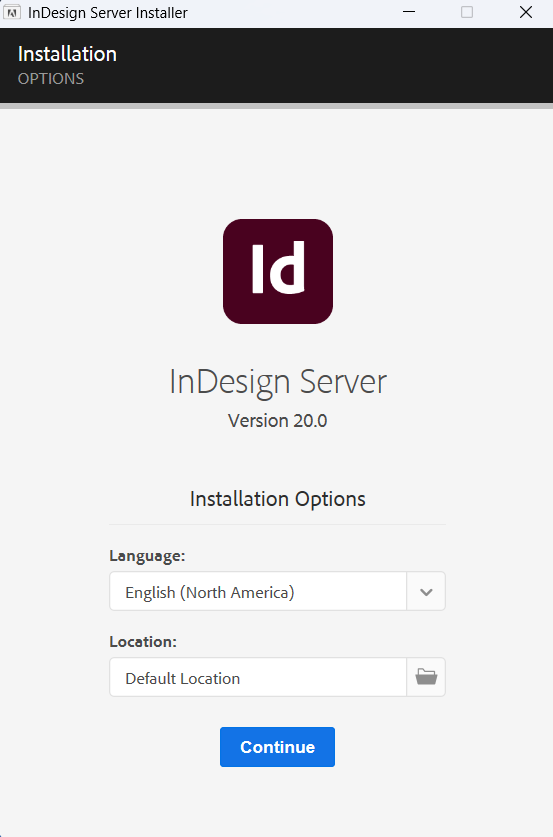
Click "Continue"
Running Installation
System will show installation progress.
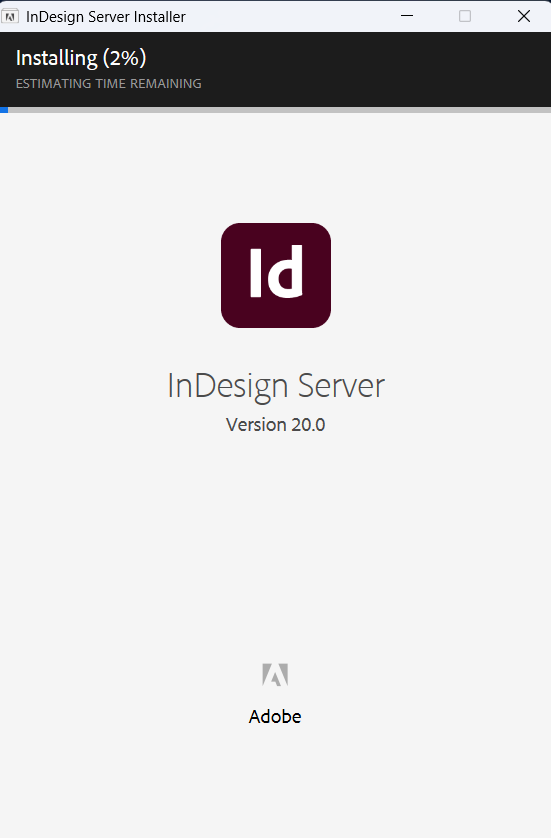
Once the installation is done, click on « Close »
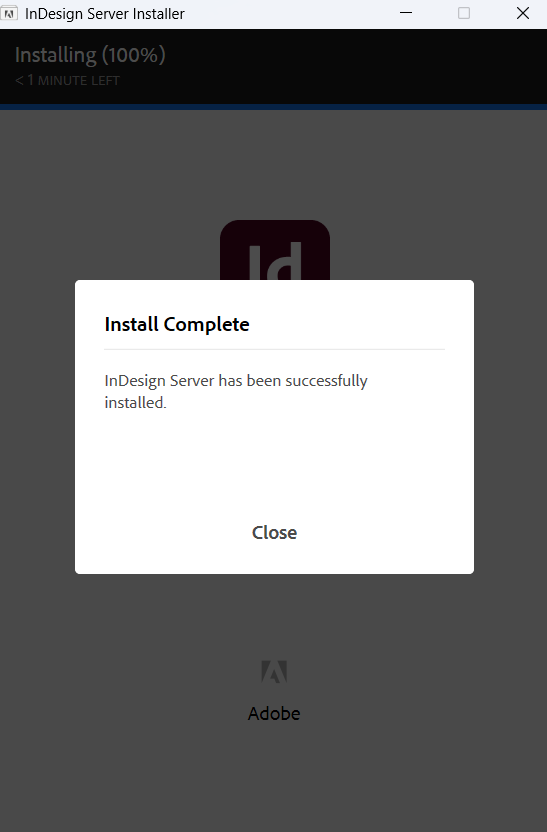
InDesign Service Creation and Configuration
Windows Service - Creation
To install the service using the command line you need to have administrator rights. Go to the directory where Indesign Server is installed.
Run the following command
InDesignServerService.exe /install
After this process runs successfully you should be able to see the IndesignServerService inside of the Windows Services Console.
Windows Service - User Properties
Go to the Windows services management console and double-click on the service « InDesignServerService » to open the details window.
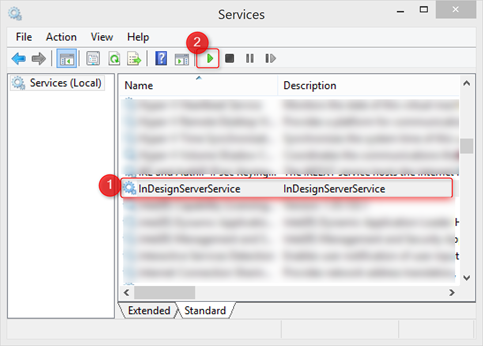
Select the « Log On » tab and change the user/password to have an administrator user instead of the Local Service, and click on « Apply ».
N.B.: The user defined here must be able to read/write on the network shared folders. It is strongly recommended to create a own user in your windows domain for this purpose.
Windows Service - Recovery Properties
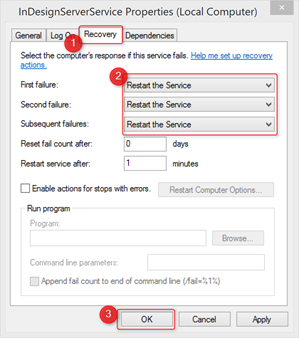
Select the « Recovery » tab and change all the failure actions to « Restart the service » and click on « OK »
Register InDesign Server Management Console
The second component of the InDesign Server Windows Service is the InDesign Server Service Management Console snap-in. If you installed the service using the InDesign Server installer, the snap-in also was installed then. If you used the command line to install the service, you also need to install the snap-in, as described here.
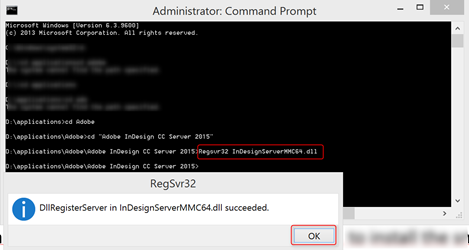
Start a Windows command line as administrator and go to the folder $indesignserver_path by doing “cd $indesignserver_path”
Run the following command: “Regsvr32 InDesignServerMMC64.dll” and click on “OK”
priint::comet Plug-in Installation
To install the priint:comet server plug-ins use the Installer that you can download from our FTP Server:
Run the Installer
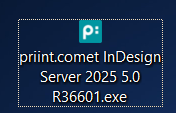
Double-click the priint:comet Server Plugin Installer to execute it.
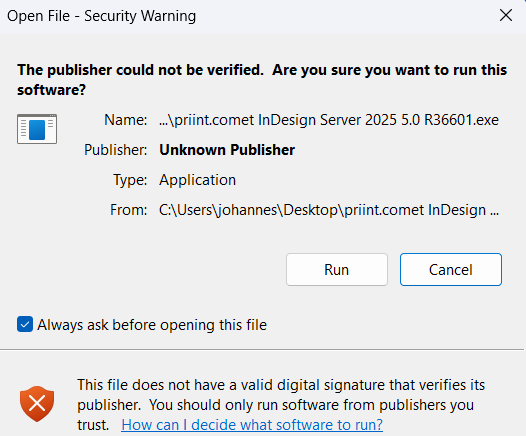
The Installer is unsigned Software, click "Run" to run the Installer.
Select your language and click on "OK".

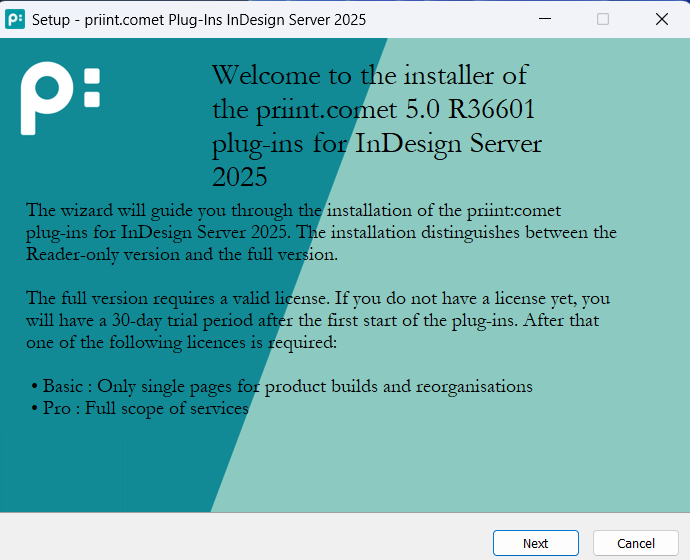
The Welcome Screen will be displayed. Click on "Next" to continue.
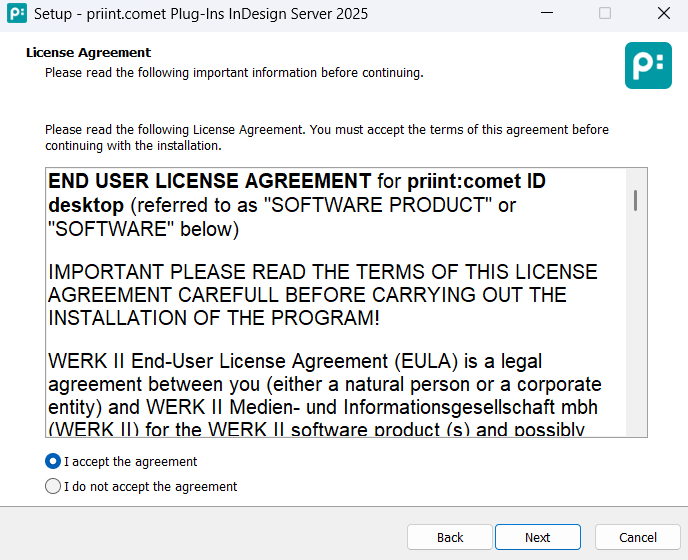
The license Agreement is shown. Select "I accept the agreement" and click on "Next".
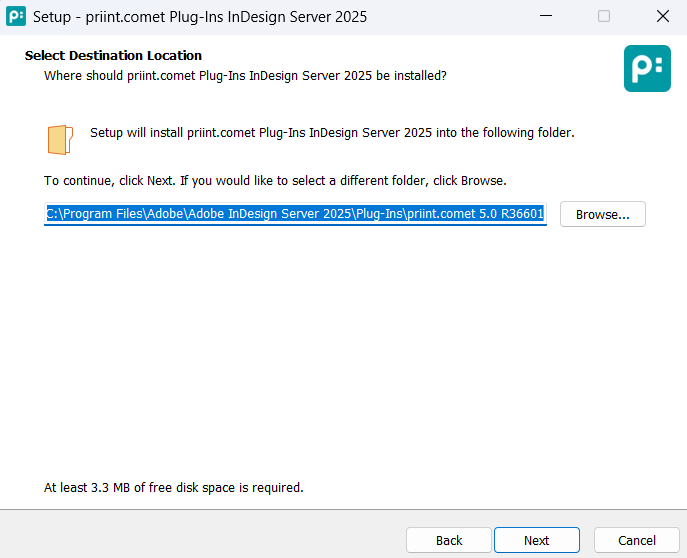
Select the location where the Plugin should be installed. Default location is recommended.
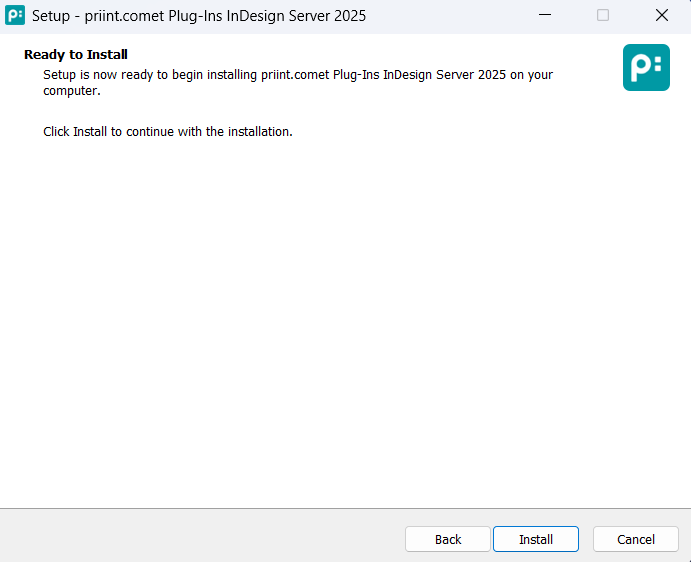
Now we are "Ready to Install" and can start the installation by clicking on "Install".
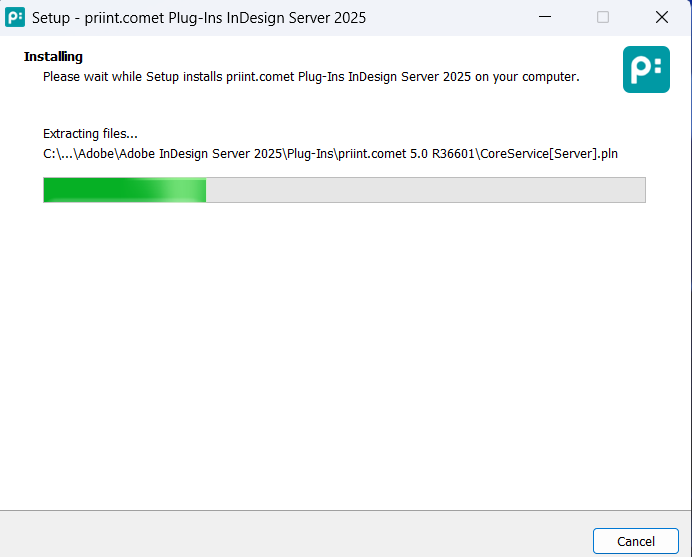
We will now see the installation process.
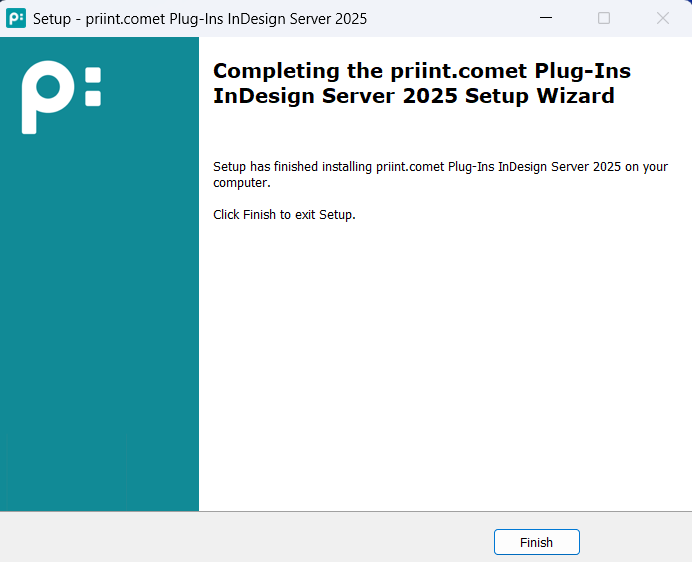
When the Installation is finished the following screen is shown. Click on "Finish" to exit the Installer.
Go into the folder « $indesignserver_path/Plug-Ins/WERK II RXXX »
priint::comet Plug-in Licensing
comet plug-ins will need a license file. The license file is provided by priint.com on your request.
Get License Order Text
Start a Windows command line as administrator and go to the folder $indesignserver_path by doing “cd $indesignserver_path”.
Run the following command: « InDesignServer.com » and copy the content from « // » to the « Expired » line. It contains the appropriate license order text.
Create a new text file and paste the content previously copied into it.
Request a License from priint.com
Send the text file to license@priint.com with the request to create a license for the server.
License processing contains manual steps so it depends on office hours. You will receive the license file by e-mail.
After you received the license file (w2.lic) copy it into the $indesignserver_instances_path.
Configure InDesign Server Instances
InDesign Server can run in multi-instance mode.
For configuration of instances follow the steps below.
Prepare the Configuration Snap-in
Start a Windows command line as administrator and run run « mmc » to start Microsoft Management Console.
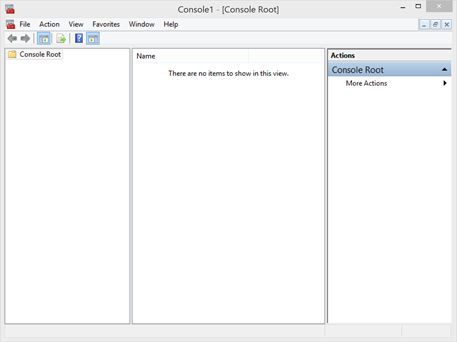
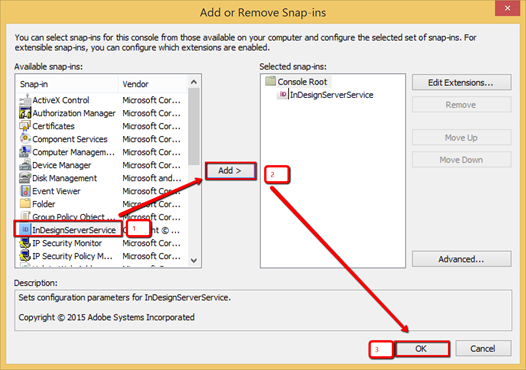
Go to « File > Add/Remove Snap-in »
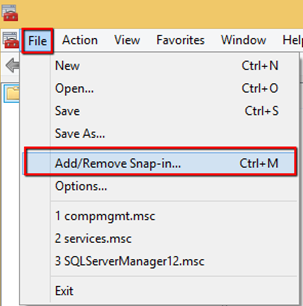
Select InDesignServerService, click on « Add > » and click on « OK »
Add an InDesign Server Instance
In the snap-in right-Click on « InDesignServerService > New > New InDesignServer instance »

Open a text editor, copy the following line and adapt it to your folder paths:
-configuration Instance01
-cometport 4711
-Comet D:\applicationsdata\indesignserver\log\Comet01.log
-cometapilog D:\applicationsdata\indesignserver\log\api01.log
-cometcache D:\applicationsdata\indesignserver\cache\instance01
-cometlic D:\applicationsdata\indesignserver\w2.lic
-previews
–LogToApplicationEventLog
Edit the bold values above to have the correct paths to the $indesignserver_instances_path.
- Port must start at 4711 and be incremental.
- All folders must exist.
Do as much instances you need. Copy each line as a new InDesignServer instance in the mmc Close the mmc. The result may look as follows:

Check the Installation
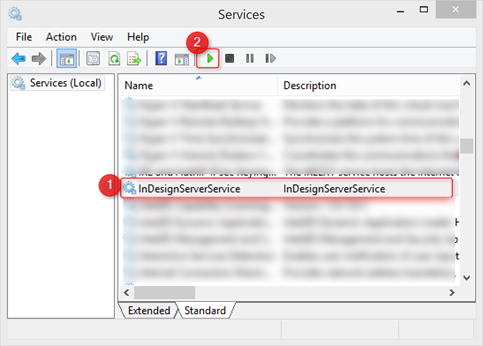
Go to the Windows services management console and double-click on the service « InDesignServerService » to open the details window.
Start the Service
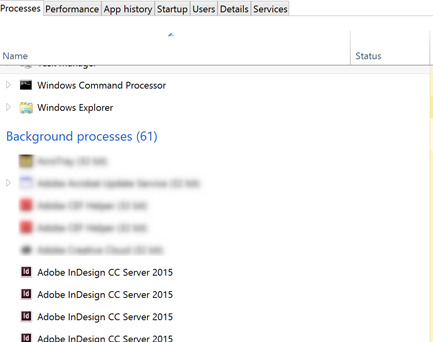
Open the Windows Task Manager and go into processes: there should be as much « Adobe InDesign CC Server 2025 » processes as instances you defined!
Open a web browser and enter the following url: http://127.0.0.1:\[PORT\] And test each instance, for each, you should see a soap response like this:
