priint:comet PDF Renderer - Setup Guide for Windows
1 Overview
You can use the priint:comet PDF Renderer for rendering pages, exporting PDF documents, create previews and several more rendering tasks. Connecting publishing server with Rendering Service and "embedded" priint:comet PDF Renderer requires some additional setup steps, which are described in this document.
In contrast to previous versions of the priint:suite the usage of the "standalone" (CLI) version of priint:comet PDF Renderer is no longer supported with release of priint:suite 2025.1 (4.6) and higher. Instead, you have to use the Rendering Service together with the "embedded" priint:comet PDF Renderer.
2 Prerequisites
These are the minimum versions required to use priint:comet PDF Renderer with the priint:suite 2025.1 (4.6) and higher:
- Windows 10 and 11, Windows Server 2019, 2022 and 2025
- priint:publishing server - Version: >= 2025.1 (4.6)
- Rendering Service - Version: >= 4.6
- priint:comet PDF renderer - Version: >= 5.0
2.1 Download Publishing Server
Download the latest Publishing Server here.
More details about the installation of the Publishing Server can be found in this article: Installation of Publishing Server
2.2 Download Rendering Service
Download the latest Rendering Service here.
Unzip the downloaded zipped jar file and copy it into your Rendering Service Application directory.
2.3 Download priint:comet PDF Renderer (Native Libraries)
Ensure you have a folder containing all native libraries. The libs can be found at this GitLab repository (internal access only) or on the priint FTP Server in the folder https://webftp.priint.com/#/Comet_PDF/5.0/latest/. The Libs ("lib/native/win") can be found together with a "config" folder in the archive "priint-renderer-pdf-win-5.0-RXXXXX.zip".

Copy the "lib" and the "config" folder as a sub folder of your Rendering Service Application.
3 Configure Rendering Service with embedded priint:comet PDF Renderer
3.1 Documentation
Please follow the instructions delivered with your priint:comet PDF renderer release. This contains detailed information about licensing, configuring fonts and pdf presets ("joboptions") and additional requirements.
3.2 System Privileges
Please make sure, that the Rendering Service user (service account or local system account) can access the priint:comet PDF renderer configuration directory.
4 Connecting priint:publishing server and priint:comet PDF Renderer, embedded in Rendering Service
To use the "embedded" priint:comet PDF Renderer with the publishing server, the Rendering Service must be configured.
4.1 Configuration of Rendering Service
The configuration is done in the "application.yaml" file of the Rendering Service.
priint:
  app-name: "renderingservice1"
  comet:
    bridge:
      url: http://localhost:40082/CometBridge/Comet3Service
      user: admin
      password: somePassw0rd
      projects: DefaultProject,someOtherProject
    planner-engine:
      url: http://localhost:40080/PlannerEngine/api
      user: admin
      password: somePlannerEnginePassw0rd
- Bridge URL (bridge -> url) : this is the
IPornameplusportof the publishing server. This IP or name must be resolvable from the Rendering Service host. The port must accept requests from the Rendering Service host, but should deny requests from other hosts. This is used for callback calls from PDF Renderer to the Comet Bridge (SOAP) and should use Listener 3 (HTTP) of Payara 6 Application Server. - Bridge User (bridge -> user) : global user name for callback connections. The user must have sufficient privileges to connect to any required Comet project, but should not have any UI privileges.
- Bridge Password (bridge -> password) : global password for callback connections
- Bridge Projects (bridge -> projects) : list of projects that this Rendering Service connects to on itÄs startup. Projects not listed here will also work, but the connection is established when the first task arrives.
- Planner Engine URL (planner-engine -> url) : this is the
IPornameplusportof the publishing server. This IP or name must be resolvable from the Rendering Service host. The port must accept requests from the Rendering Service host, but should deny requests from other hosts. It is used for API calls to the Planner Engine (REST) and should use Listener 1 (HTTP) or Listener 2 (HTTPS) of the Payara 6 Application Server. - Planner Engine User (planner-engine -> user) : global user name for capi (REST) calls. The user must have sufficient privileges to connect to any required Comet project.
- Planner Engine Password (planner-engine -> password) : global password for api (REST) calls.
More details about the configuration of the Rendering Service can be found in this article: Configuration of Rendering Service
4.2 priint:comet PDF Renderer Configuration
The number of PDF Renderer instances that are available are configured in a JSON file. The name of this JSON file is passed on startup of each Rendering Service Application.
Example of command line option:
--workers.config=global-pdf-rendering-service-config.json
4.2.1 Worker configuration (JSON)
{
   "workerTypes" : [
      {
         "workerType": "PdfRenderingWorker",
         "defaultWorkerConfig": {
            "type": "PdfRenderingWorker",
            "topic": "priint-rendering",
            "maxTasks": 1,
            "lockDuration": 60000
         },
         "defaultWorkersCount": 4,
         "maxWorkersCount" : 4
      }
   ],
   "applications" : [
      {
         "applicationName" : "renderingservice1",
         "workersPools" : [
            {
               "type" : "PdfRenderingWorker"
            }
         ]
      }
   ]
}
4.2.2 Fields in worker configuration file
Here is a description of the fields in the order they appear in the file
| Field name | Mandatory | Values | Description | ||
| 1st level | 2nd level | 3rd level | |||
| workerTypes | required | list of worker types - for now only 1 is used at once | |||
| workerType | required | PdfRenderingWorker, InDesignRenderingWorker | |||
| defaultWorkerConfig | optional | set | It is a sub-set of properties from worker-specific configuration which should be common for all the worker instances. These values will be pre-set for every worker in every application (but can be potentially overriden on the lower lever) | ||
| defaultWorkersCount | optional | number | if a worker doesn't require low level config settings (like Adobe InDesign Server® url which has to be different for each worker) you can just specify default number of its instances. This value can be also overriden on lower levels. | ||
| maxWorkersCount | optional | number | maximum number of workers of a given type. | ||
| applications | required | ||||
| applicationName | required | string | it is matched from priint.app-name application property | ||
| workerPools | required | list of worker pools - one for each worker type working on a given machine. When one type is used then would be only 1 entry for every application | |||
| type | required | must be set the same as workerType | the only required field for a worker pool allowing us to link it to a given workerType - must be equal to workerType value | ||
| defaultPoolLevelConfig | optional - not used | allows to define worker specific configuration common for all the workers in the pool. Specified values will potentially override the values from the type level and can be still overriden on the concrete worker level. | |||
| workerConfigs | optional | one of the possibilities to specify concrete worker instances - there will be as many workers as entries of this array. It allows you to define different configuration for every worker. Each config is a sub-set of properties from worker-specific configuration | |||
4.2.3 Worker types
In the workerTypes field is defined only the type of the worker. No worker will be started if only this field is set. It is just the type definition (like a class without an object instance). Certain worker behavior (rendering through Adobe InDesign Server® or priint:pdf renderer through a pdf library) is associated with a given worker type.
Only 2 types are available in Worker Service: PdfRenderingWorker and InDesignRenderingWorker - each of them requires different configuration properties.
4.2.4 Worker specific configuration
There is a fixed set of configuration properties for every worker type. Each configuration consists of common properties and custom properties.
4.2.4.1 Common properties
Common properties are the same for all the types and for the moment we use the following ones: type, topic, lockDuration, maxTasks, usePriority. These fields are used to configure and initialize the Camunda client. Their meaning is the following:
| Property | Required | Value | Description |
|---|---|---|---|
| type | required | PdfRenderingWorker, InDesignRenderingWorker | workerType is required for every config property definition - it must be the same as workerType field of a given worker |
| topic | required | priint-rendering | the camunda topic name for a given worker type - this field shouldn't be modified |
| lockDuration | optional | integer | defines (in millis) for how long the camunda will lock a given camunda task for processing by a given worker. After this time passes the given task may be unlocked and given to another worker. If 80% of the lock duration passed and the task is still being processed, a watchdog thread will attempt to prolong the lock. We therefore recommend to either leave this property out (for a default of 60000 ms to be used) or set it to at least 10000 ms. A warning will be printed in the logs if you specify a smaller value. |
| maxTasks | optional | integer | defines how many tasks should be fetched at once when accessing Camunda. Typically, equal to 1 when tasks should be fetched one by one. We don't recommend changing this value unless you need to process big amount of short-living tasks and fetching them one by one would require too many requests and would be too slow. |
| usePriority | optional | boolean | true by default - if set to false camunda will ignore task priorities when fetching tasks |
4.2.4.2 Custom properties
Custom fields are exclusive for a given worker type and are typically related to its specialization. For example InDesignRenderingWorker uses obligatory indesignServer property. Here is full set of properties for InDesignRenderingWorker:
5 Paths and Folders
You must setup the following paths and folders to use the priint:comet PDF Renderer
5.1 Cache Path
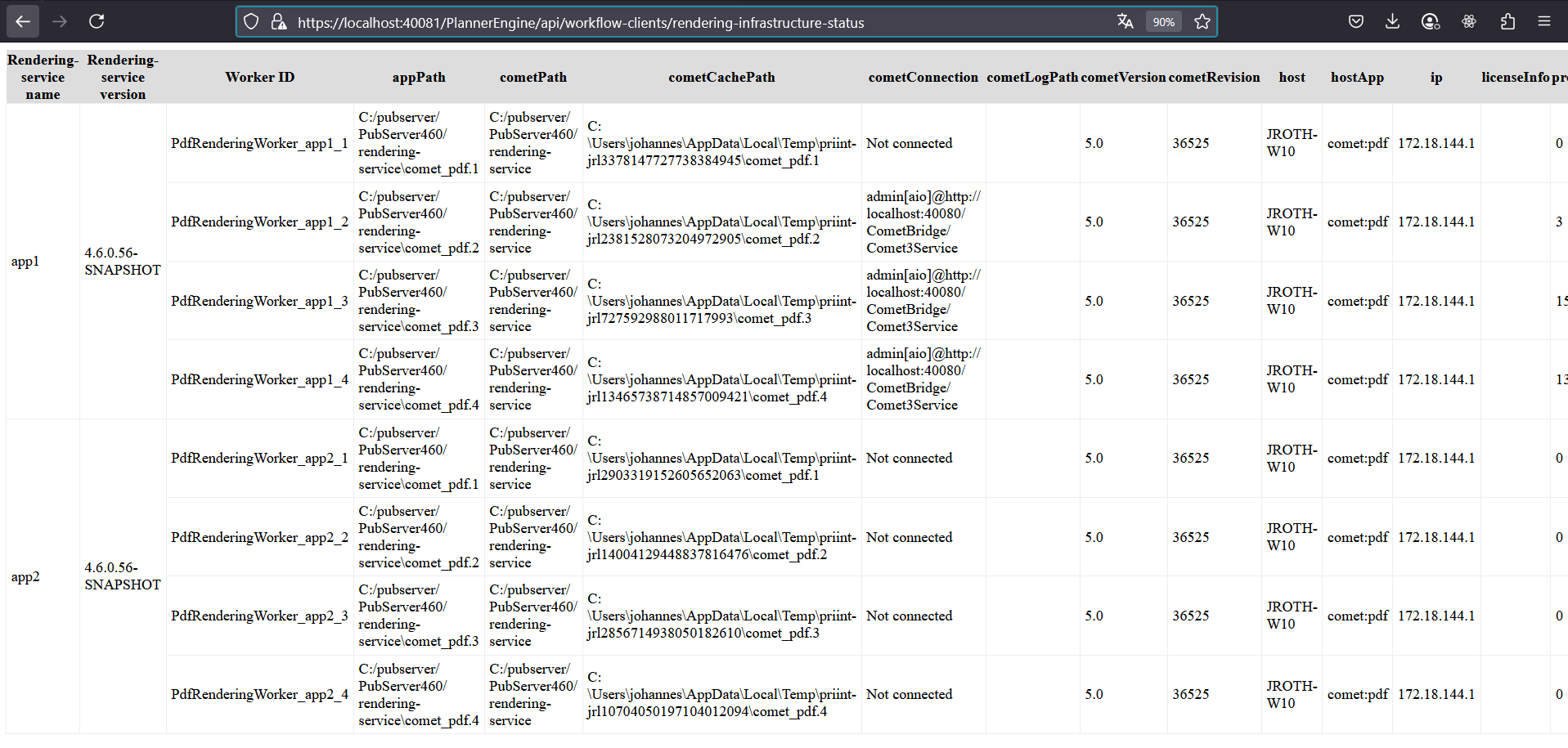
In the past it was possible to configure the Cache path for each instance of the priint:comet PDF Renderer. In the current implementation of the Rendering Service it is not possible to configure this and the cache will be created automatically in the system temporary directory (e.g. "C:\Users<user>\AppData\Local\Temp") of Windows. This cache is used by the priint:comet PDF Renderer to store temporary data (downloaded templates, actions etc.). The name of this folder is derived from the instance name (e.g. "priint-jrl3378147727738384945\comet_pdf.1").
5.2 Comet Log
To configure the "comet.log" of each priint:comet PDF Renderer instance, Logback (logback.xml) of the Rendering Service is used.
You can configure logback to output logs as desired. When defining your own application-....yml, just define a pointer to logback config file like this:
logging:
  config: logback.xml
Example logback.xml
<?xml version="1.0" encoding="UTF-8"?>
<configuration scan="true" scanPeriod="30 seconds">
  <include resource="org/springframework/boot/logging/logback/defaults.xml"/>
  <include resource="org/springframework/boot/logging/logback/console-appender.xml"/>

  <appender name="FILE" class="ch.qos.logback.core.FileAppender">
    <file>rendering-service.log</file>
    <encoder>
      <pattern>%d{HH:mm:ss.SSS}|%-4relative [%thread] %-5level %logger{35} - %msg%n</pattern>
    </encoder>
  </appender>

  <!-- Appenders and loggers below should only be set when working with the PDF renderer -->
  <appender name="COMET-PDF-1" class="ch.qos.logback.core.FileAppender">
    <file>C:\comet\log\comet-pdf1.log</file>
    <encoder>
      <pattern>%d %p %c{1} [%t] %m%n</pattern>
    </encoder>
  </appender>
  <logger name="com.priint.comet.renderer.pdf.Instance1" level="INFO" additivity="false">
    <appender-ref ref="PDF-RENDERER-INSTANCE-1"/>
  </logger>
  <appender name="COMET-PDF-2" class="ch.qos.logback.core.FileAppender">
    <file>C:\comet\log\comet-pdf2.log</file>
    <encoder>
      <pattern>%d %p %c{1} [%t] %m%n</pattern>
    </encoder>
  </appender>
  <logger name="com.priint.comet.renderer.pdf.Instance2" level="INFO" additivity="false">
    <appender-ref ref="PDF-RENDERER-INSTANCE-2"/>
  </logger>
  <appender name="COMET-PDF-3" class="ch.qos.logback.core.FileAppender">
    <file>C:\comet\log\comet-pdf3.log</file>
    <encoder>
      <pattern>%d %p %c{1} [%t] %m%n</pattern>
    </encoder>
  </appender>
  <logger name="com.priint.comet.renderer.pdf.Instance3" level="INFO" additivity="false">
    <appender-ref ref="PDF-RENDERER-INSTANCE-3"/>
  </logger>
  <appender name="COMET-PDF-4" class="ch.qos.logback.core.FileAppender">
    <file>C:\comet\log\comet-pdf4.log</file>
    <encoder>
      <pattern>%d %p %c{1} [%t] %m%n</pattern>
    </encoder>
  </appender>
  <logger name="com.priint.comet.renderer.pdf.Instance4" level="INFO" additivity="false">
    <appender-ref ref="PDF-RENDERER-INSTANCE-4"/>
  </logger>
  <!-- END of PDF renderer appenders and loggers -->

  <root level="INFO">
    <appender-ref ref="CONSOLE"/>
    <appender-ref ref="FILE"/>
  </root>
  <logger name="com.priint" level="INFO"/>
</configuration>
6 Monitoring priint:comet PDF Renderer Instances
To check the status of the configured rendering workers open the Worker Status Page of a Rendering Service Application
http://<host>:<port>/workers/status

In addition to that you can check the status of all attached Rendering Services of a Publishing Server by opening:
http://<host>:<port>/PlannerEngine/api/workflow-clients/rendering-infrastructure-status