Document Templates
Administration of Document Templates is available in Neowise. It is possible to remove, edit, re-upload and check the list of all Document Templates. Please note the panel is visible only if the User has one of the following rights: Create Document Template (NEO_DOCUTEMPL_CREATE), Delete Document Template (NEO_DOCUTEMPL_DELETE), Edit Document Template (NEO_DOCUTEMPL_EDIT).
1 Overview
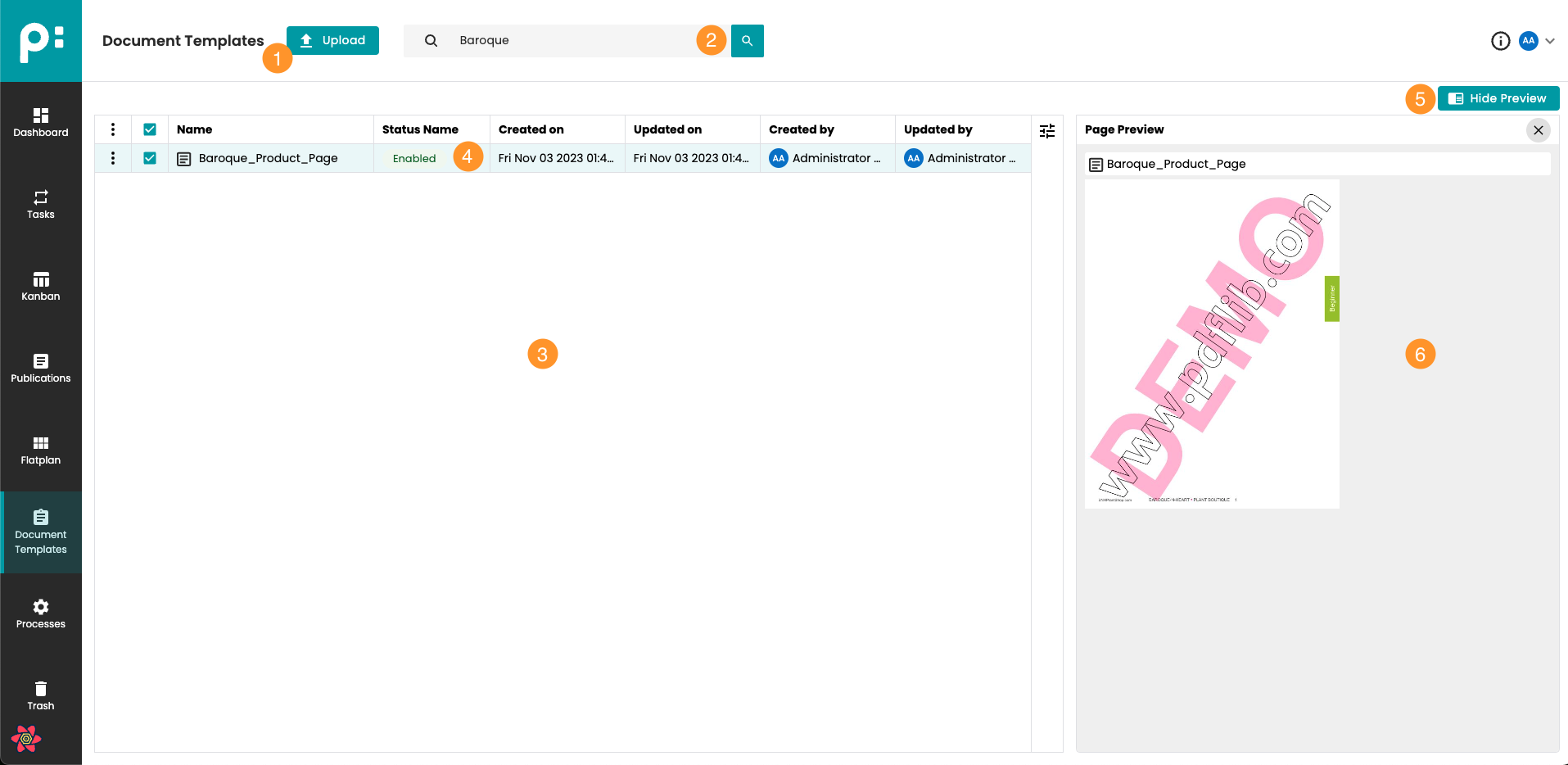
- Button for opening the Document Template Upload dialog.
- Search bar - Document templates can be searched for by label.
- List of Document Templates. Multi-selection with shift button is possible.
- Status of Document Template (Enabled/Disabled).
- Button for opening and hiding Document Template preview.
- Document Template preview.
2 Context Menu overview
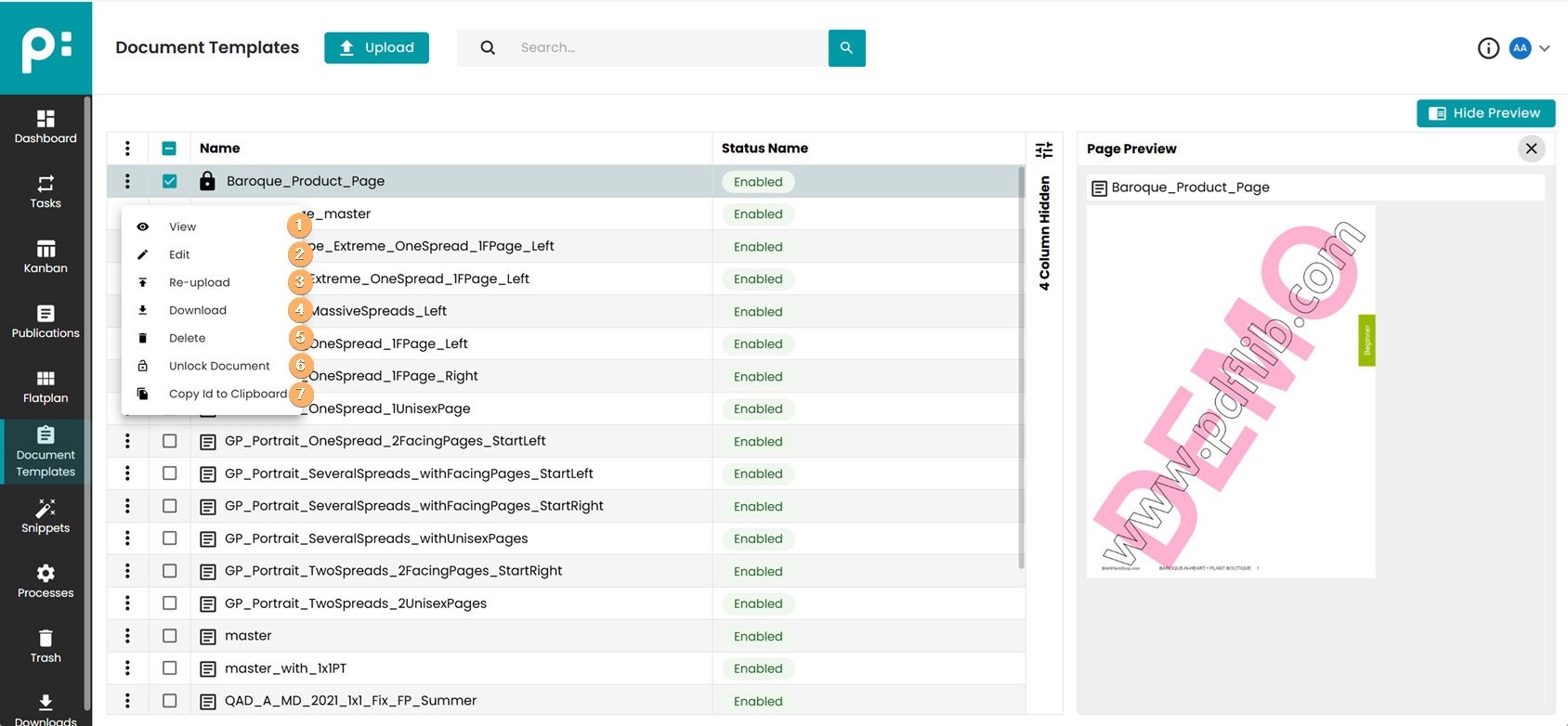
- Open the Detail Panel in the View Mode (also works for multi-selection) (see 5 Viewing details of Document Template)
- Open the Detail Panel in the Edit Mode (also works for multi-selection) (see 6 Editing details of Document Template)
- Open the Re-upload dialog (see 4 Re-uploading Document Templates)
- Download the selected Document Template.
- Delete the Document Template. Please note this is a soft delete and the Document Template is moved to Trash. (also works for multi-selection)
- The selected and locked (opened/checked-out) document template can be unlocked here.
- Copy id of the Document Template to clipboard.
3 Uploading Document Templates
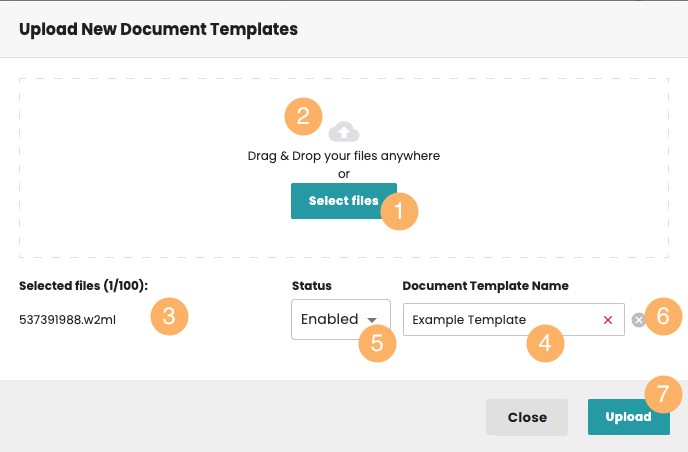
- Button for selecting the files from the file system.
- Drop area for dropping files from the file system.
- List of added elements.
- Name of the Document Template.
- Status of the Document Template.
- Disabled - Document Template will not be visible for selection in the Publication Window.
- Enabled - Document Template will not be visible for selection in the Publication Window
- Button for removing an added file.
- Button for starting the upload process.
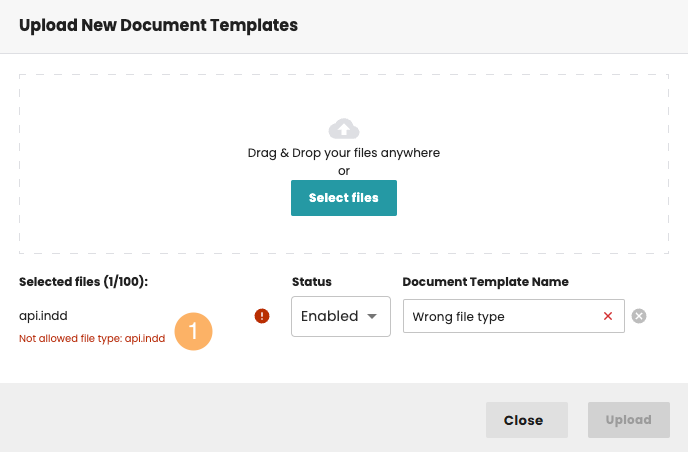
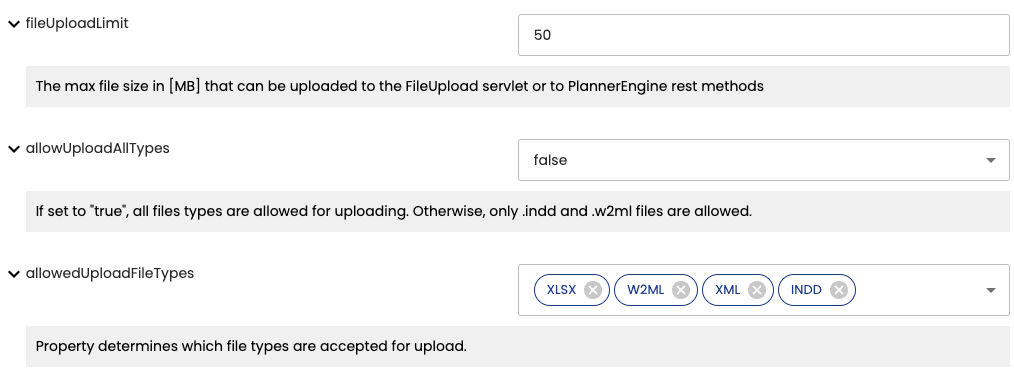
- Error message. Please note it is possible to set the file types that are allowed in the Preferences -> Server property -> CometServer ->
allowedUploadFileTypes. It is also possible to allow all files types using theallowUploadAllTypesproperty, which is not recommended due to security reasons. Maximum size of the uploaded file can be set usingfileUploadLimitproperty (see below).
4 Re-uploading Document Templates
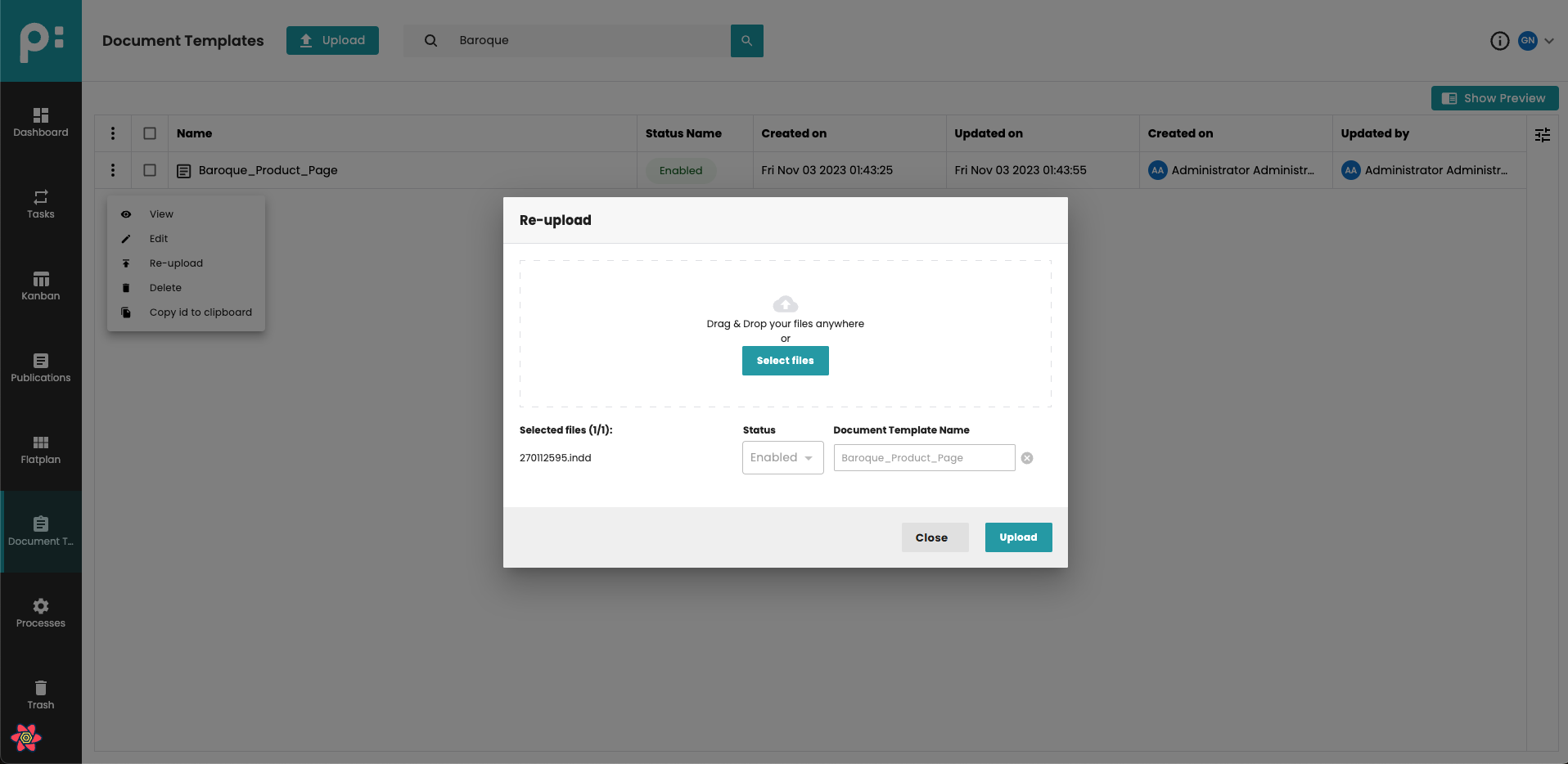
It is possible to re-upload the document file for the Document Template. To do this, please use the re-upload context menu item for the given Document Template.
Please note Edit Document Template (NEO_DOCUTEMPL_EDIT) access right is needed to execute the function.
Standard dialog for uploading is used. One file is allowed.
5 Viewing details of Document Template
Using this panel you can check the detail information of the Document Template
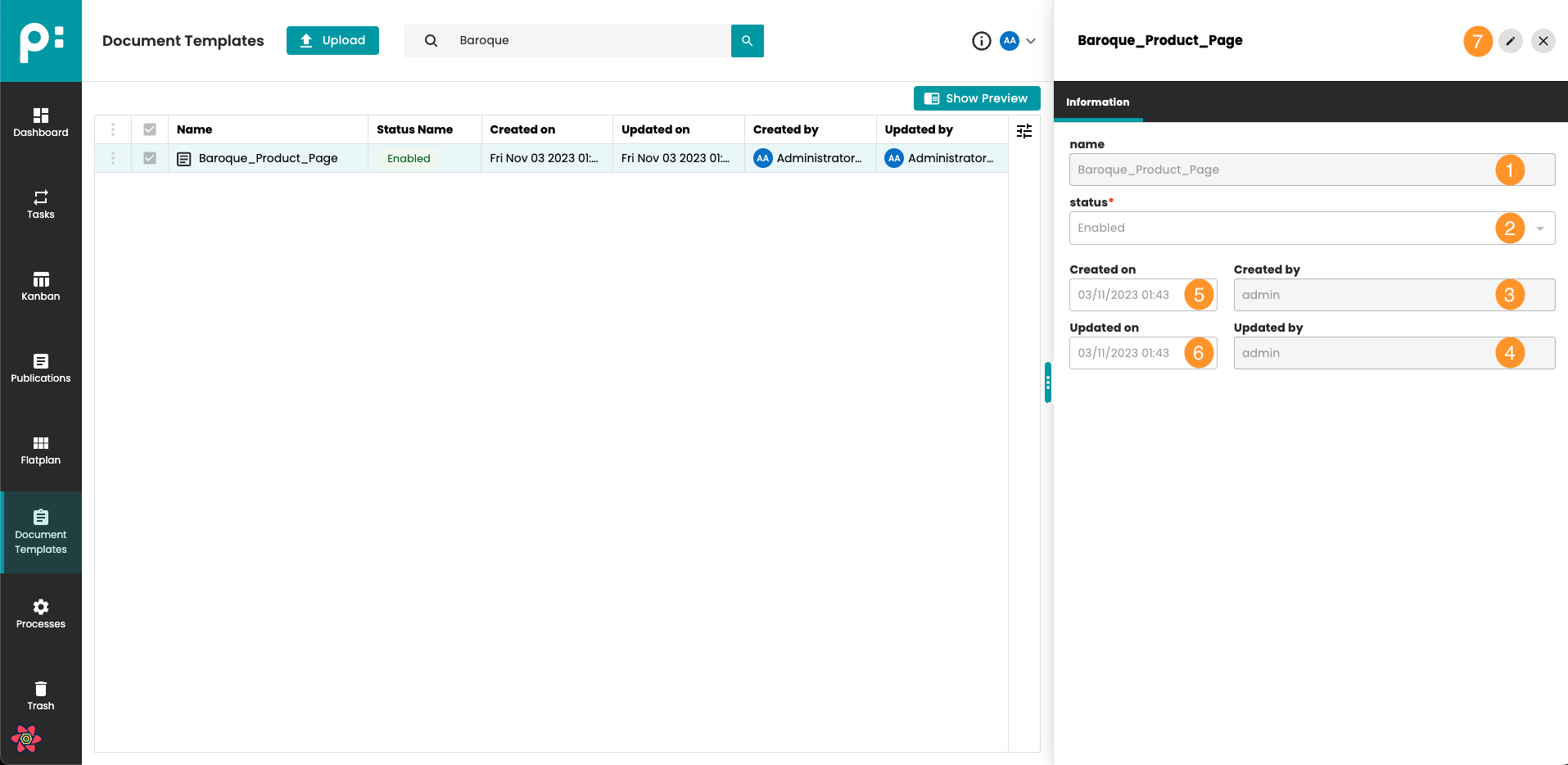
- Document Template name
- Document Template status
- Creator of the Document Template
- The last person who updated the Document Template
- Date of creation
- Date of last update
- Button to switch between view and edit mode
6 Editing details of Document Template
Using this panel you can edit the detail information of the Document Template.
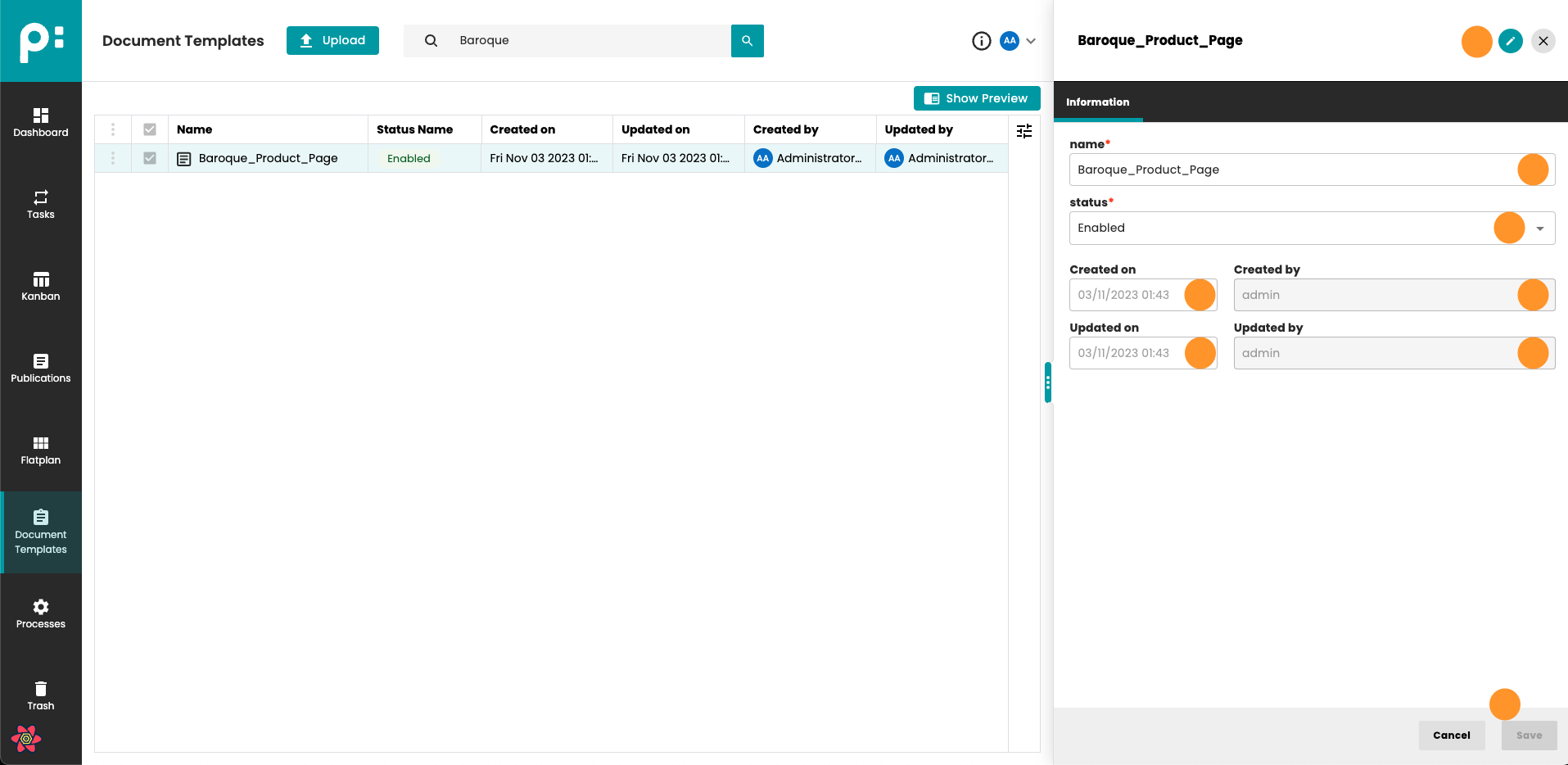
- Document Template name
- Document Template status. Disabled - the Document Template is not available for Document creation. Enabled - the Document Template can be used to create new Documents.
- Creator of the Document Template
- The last person who updated the Document Template
- Date of creation
- Date of last update
- Button to switch between view and edit mode
- Save button - enabled only if some changes have been made